


LMS configuration is the work of turning a brand-new learning management system into one that fits your organization: the right people with the right access, courses organized the way your team actually works, and the tools you already use connected to it.
It sounds like a lot of settings, and it's easy to worry you'll miss one. But configuration is a focused, first-run task with a clear order of operations. It doesn't have to be a multi-month project.
What is LMS configuration?
LMS configuration is the process of adjusting your learning management system's settings so it fits how your organization actually works: who can do what, how courses are organized, which other systems it connects to, and what learners see when they log in.
It's easy to confuse with two related terms. LMS setup is the broader task of getting a new or trial LMS ready to use. Configuration is the specific work inside that: the settings you actually adjust. Implementation is a bigger, longer project some other guides describe, usually spanning weeks or months with a dedicated team.
This guide covers setup and configuration, the focused first-run work, not a multi-month implementation plan.
Configuration doesn't have to take long. Aaron Robbins, managing director at Mojo Moments, had Absorb LMS running in less than two weeks. Course content, email templates, and eCommerce were all set up in that window, managed by a team of two.
Larger, multi-department rollouts take longer. Aimee Romero, HR manager at Trojan Storage, says her company's LMS implementation took two months across four curriculums and 48 storage facilities.
Why a clean configuration process matters for a new rollout: get it right, and learners see a system that already makes sense for their role. Get it wrong, and you spend months fixing permissions and content structure after people are already relying on it.
The rest of this guide walks through what to configure first, and in what order, so you can move from "where do I even start" to a system that's ready for your team.
LMS configuration process
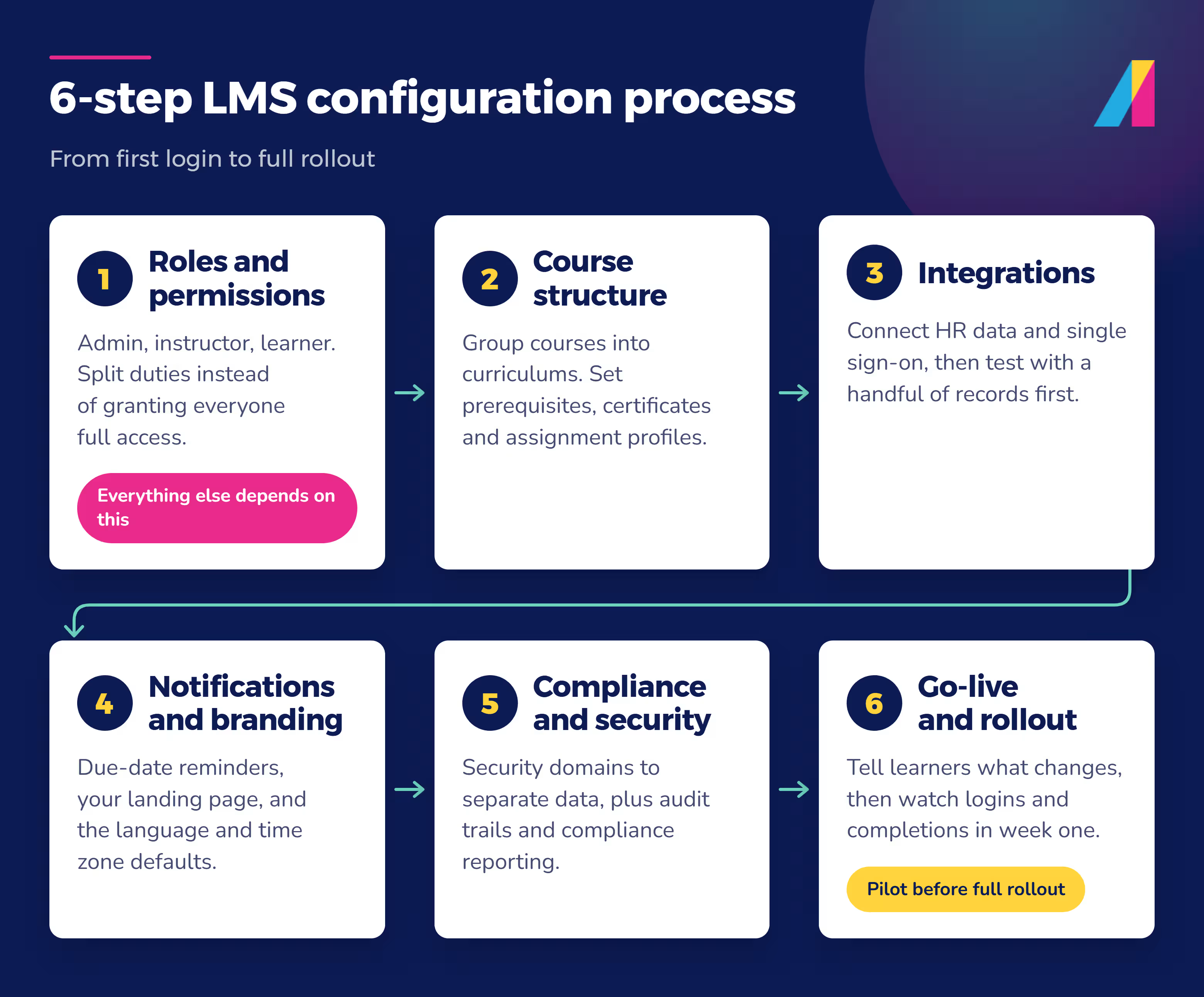
Six steps, in the order an admin should tackle them: roles, course structure, integrations, notifications and branding, compliance, then go-live. Each step builds on the one before it, so work through them in order. Don't just jump to whichever setting feels most urgent.
Step 1: user roles and permissions
Start here. Every other setting depends on who can see and change what.
Department structure is part of that foundation. Anglique Kambylis, Senior Manager of Implementation at Absorb, puts it plainly:
Finalize your department structure early. You can't import users until departments exist, SSO can't be fully configured, and automatic enrollment rules can't be built. One unmade decision there cascades through the entire timeline.
LMS roles: administrator, instructor, and learner
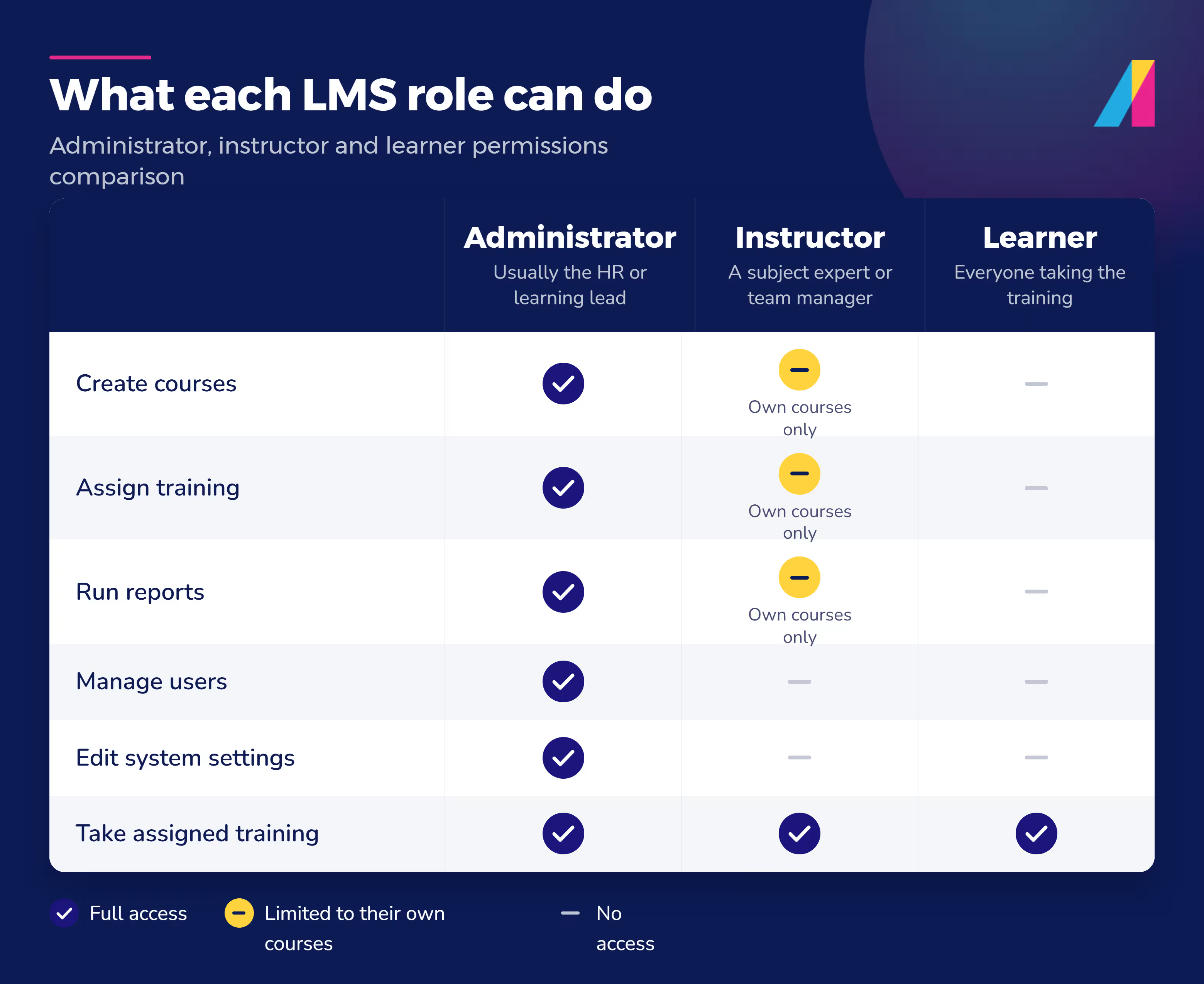
Most LMS platforms, including Absorb LMS, use three core roles. Administrators manage the system: they create courses, assign training, and run reports. Instructors deliver or oversee specific courses without full system access. Learners take the training assigned to them.
Set these three roles up correctly first. Get it wrong here, and you'll be redoing permissions after people are already using the system.
Dividing permissions on a small team
If you're managing the LMS alone or with one or two other people, don't give everyone full administrator access by default. Split responsibilities instead: one person handles user management and enrollment, another handles course content and reporting. This keeps changes traceable and reduces the chance someone edits the wrong course or removes the wrong user by mistake.
Aaron Robbins at Mojo Moments manages Absorb with just one other person, a couple hours a week combined, by using departments to segment access. Each channel partner gets its own sub-portal, so a partner's administrator only sees the users assigned to that department, not the whole system.
Common permission mistakes to avoid
Two mistakes come up often. First, giving every admin full access "to be safe." This makes it harder to see who changed what, and it's harder to fix later than it would have been to set permissions correctly from the start. Second, forgetting to review access when someone changes roles or leaves the team. Set a reminder to check user permissions quarterly, even after your initial configuration is done.
Step 2: course structure and settings
Once roles are set, decide how your courses are organized. This includes course settings, learning paths, and prerequisites: the rules that determine what a learner sees and in what order.
Course settings and structure
Group related courses into curriculums or learning paths rather than leaving them as a flat list. Trojan Storage set up four curriculums (onboarding, timekeeping, banking, and operations) covering 18 courses total. New hires know exactly what applies to their role instead of hunting through everything available.
Configure certificates of completion for any course that needs one. Set up assignment profiles if you want new users automatically enrolled in the right curriculum based on their role or department.
Learning paths and prerequisites
Prerequisites make sure learners complete foundational material before moving to advanced content. If your onboarding curriculum includes a safety course and a role-specific skills course, set the safety course as a prerequisite so no one skips it by accident.
Sequential learning paths work well for onboarding and compliance training, where order matters. For skills-based or optional training, a flexible, non-sequential structure usually serves learners better.
Step 3: integrations
Your LMS doesn't operate alone. Configuring the right integrations early saves manual work later, especially for HR data and login access.
HR system (HRIS) integration
Connecting your LMS to your HR system means new hires get enrolled in the right training automatically, without someone adding them by hand. Trojan Storage connected Absorb to ADP TotalSource, so whenever the company makes a new hire, the system automatically assigns that person's training curriculum.
Aimee Romero, the company's HR manager, says the integration helped an HR team of one person handle onboarding for a growing, multi-state workforce. She estimates it saved about $20,000 in time that used to go to manual, one-on-one onboarding sessions over video calls.
Single sign-on (SSO)
SSO lets learners log into your LMS with the same credentials they use for other company systems, so they don't need to remember a separate password. Trojan Storage's employees access their training through the same ADP TotalSource login they already use for HR tasks.
Common integration problems to watch for
Integration issues usually come from mismatched data, not the LMS itself. If employee records in your HR system don't match the format your LMS expects, automatic enrollment can fail silently. Test with a small group of users before rolling an integration out company-wide.
CMCC, an Absorb customer, uses department structure and Availability Rules to connect its LMS to its accounting system. That cut down on manual administrative work its team used to handle by hand.
Step 4: notifications, branding, and general settings
These settings are easy to skip during setup, but they shape how learners experience your LMS every day.
Notification settings
Configure email or in-app reminders for course due dates, new assignments, and completions. Without these, learners have to remember to log in on their own, and completion rates suffer.
At Five Guys, the team used automated notifications and dashboard reminders to tell crew members about new course launches and upcoming completion dates. Neil Whitaker, Senior Learning & Development Manager at Five Guys JV Ltd, says those reminders helped compliance course completion rates climb from 70% to 96%.
Generic, unedited reminders undercut this. Anglique Kambylis, Senior Manager of Implementation at Absorb, has seen what the organizations with the strongest adoption do differently:
They customize their notifications and templates so the messages sound like the organization instead of the system.
Branding and landing pages
Set up your LMS landing page with your organization's name and look, so it feels like part of your company rather than a generic tool. Custom catalog settings let you control which courses learners see first when they log in.
Finance of America redesigned its LMS landing page, including a monthly billboard promoting current training. "Using billboards helped us capture a large audience while promoting our linked training resources," says Lauren Joyce, eLearning specialist at Finance of America.
General system settings
Review general settings like language, time zone, and default course visibility. These are quick to configure and easy to forget, but they shape every learner's first impression of the system.
Step 5: compliance and security considerations
If your organization has audit or compliance requirements, a few configuration choices matter more than others.
Security domains and roles
Security domains let you segment access by department, location, or business unit, so administrators in one region can't see or edit training data for another. This matters most for organizations with multiple sites, strict data-separation requirements, or LMS configuration needs specific to regulated industries like healthcare, finance, or life sciences.
Audit trails and access controls
Make sure your LMS is configured to log who accessed or changed what, and when. This audit trail is what you'll need if a regulator or internal auditor asks how training records are managed.
At Juv'ae, document upload and approval workflows track and verify each nurse's professional registration and certifications before granting access to training. Nicole Schmid-Sanele, Co-founder and Director of Nursing at Juv'ae, says the approach gives the company 100% compliance with its regulatory registration uploads.
Pair this with reporting and analytics dashboards that let you pull compliance status by department or role, without building custom reports from scratch. These configuration choices build the audit trail and reporting a compliance review will ask for; a full regulatory compliance plan is a separate effort beyond this guide.
Step 6: go-live and rollout communication
Once the core settings are in place, don't roll the LMS out to everyone at once.
Pilot before you roll out
Test with a small group first: one department or one location. This surfaces configuration problems, like a missing permission or a broken integration, while the group affected is small enough to fix quickly.
At ATI Physical Therapy, piloting a new credentialing program with a small group first built a strong foundation and enabled clear communication before the company scaled it across its network of 850 locations. Thomas Denninger, VP of Clinical Development at ATI Physical Therapy, says that approach helped the program reach 100% credentialing compliance.
Communicate and monitor adoption
Tell learners what's changing, when, and what they need to do first. After go-live, check completion rates and login activity in your first few weeks. If one group isn't engaging, that's usually a configuration or communication problem you can still fix, not a sign the system isn't working.
Configuration mistakes to avoid
A few mistakes come up repeatedly during LMS configuration:
- Under-scoping permissions, so every administrator has full access and no one knows who changed what.
- Skipping the pilot and rolling out to everyone before testing integrations and permissions.
- Leaving default notification settings unconfigured, so learners never get reminders about due training.
- Setting up course structure once and never revisiting it as your course catalog grows.
Frequently asked questions
What is LMS configuration?
LMS configuration is the process of adjusting your learning management system's settings, such as user roles, course structure, and integrations, so it fits your organization's needs before you roll it out to learners.
How do I set up an LMS?
Start with user roles and permissions, then configure course structure, integrations, notifications, and branding, in that order. Pilot with a small group before rolling out to your full organization.
What's the difference between LMS setup, configuration, and implementation?
Setup is the broad task of getting a new or trial LMS ready to use. Configuration is the specific settings work inside that: roles, courses, integrations, and notifications. Implementation describes a larger, longer project, typically used for multi-week or multi-month enterprise rollouts. This guide covers setup and configuration.
Get your LMS configured and ready to go
None of this needs a multi-month rollout. Handle roles first, then course structure, integrations, notifications and branding, and compliance, in that order. Pilot with a small group before rolling out to everyone, then watch adoption for the first few weeks.
Getting configuration right is what lets a new LMS work the way your team actually needs. At Vivint, a better-configured training program cut the time to get new field technicians fully productive from 68 days to 39, and the time to their first customer referral from 113 days to 58. That's a training-program result, not a configuration-speed measurement by itself, but it shows what good configuration makes possible.
Absorb LMS is built to make that setup manageable, with role-based permissions, HR and SSO integrations, and reporting in one place. Train your team once you're live, watch adoption, and our team can walk through your specific setup anytime.